Start tracking prompts
Which assistants we ask, how often, and how each answer is read.
 JoshUpdated 2 min read
1. Adding a prompt
- Open Prompts and click Add prompt(s).
- Type one prompt per line.
- To group them into a topic, click Add to topic.
You'll get the first answers after a few seconds.
2. Group prompts into topics
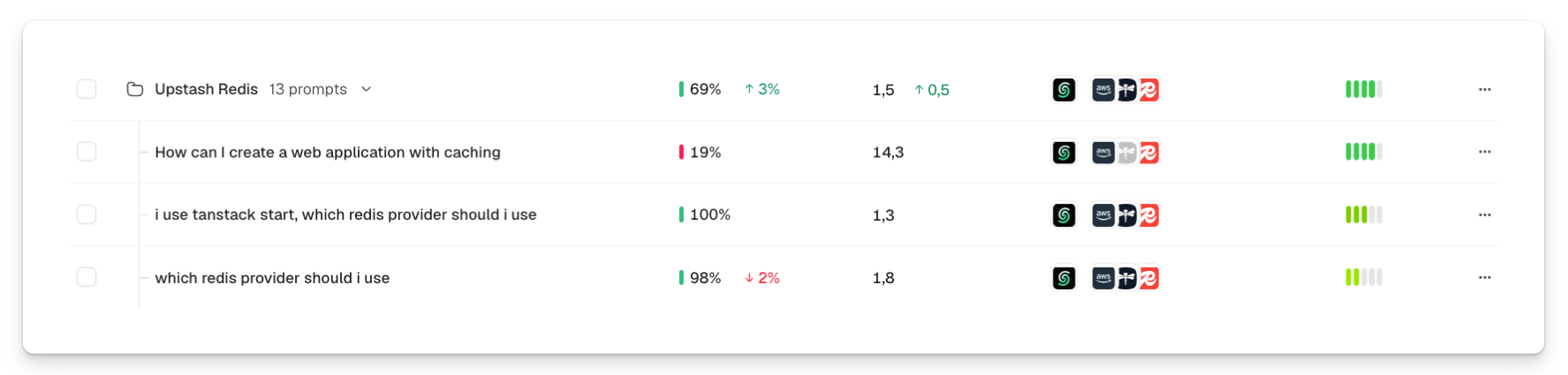
A topic is a folder of related prompts, for example per product you offer. To create a topic:
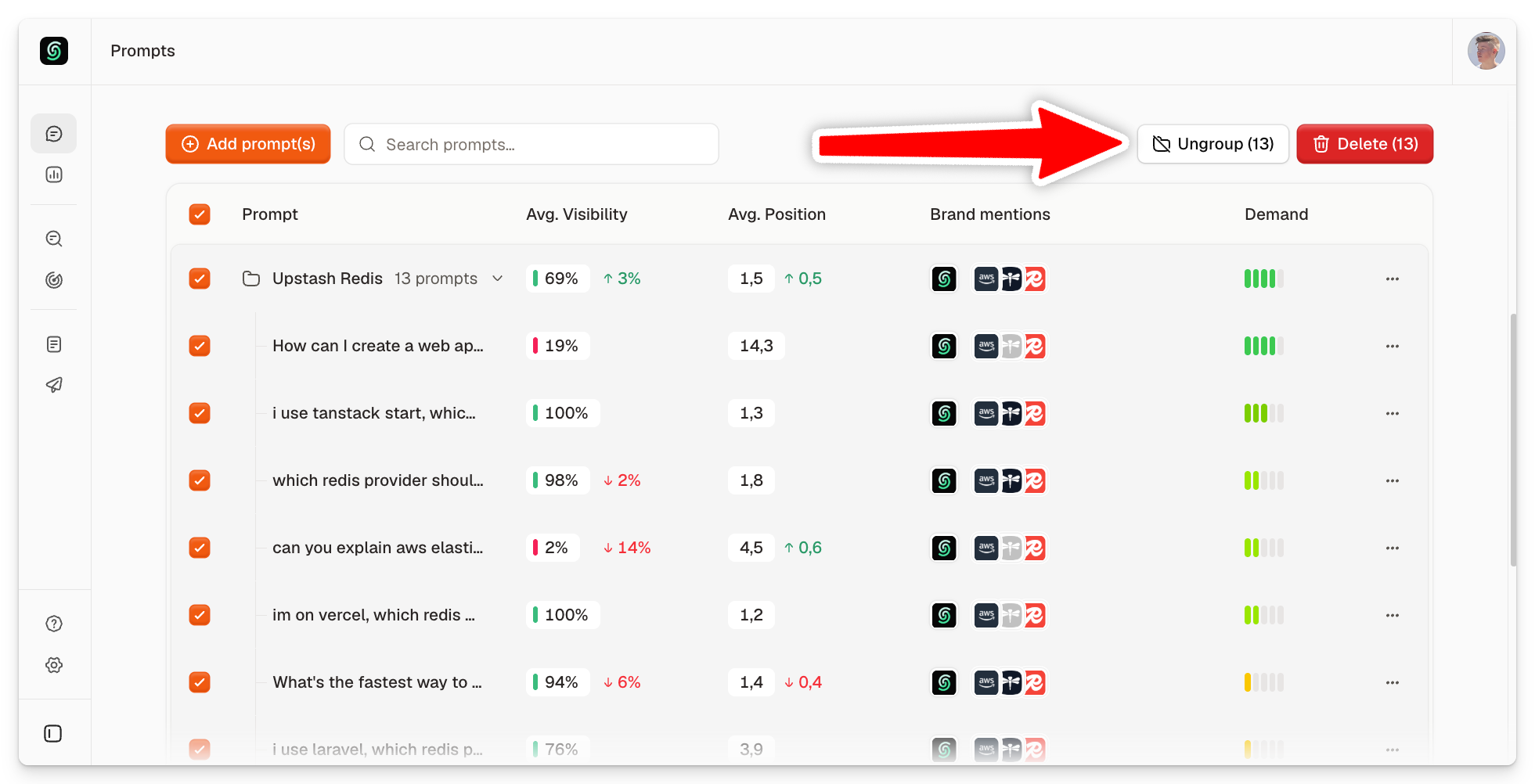
- Check the prompts you want, click Group into topic
- Use a topic's right-side menu to Rename, Ungroup or Delete it
3. Change which assistants you track
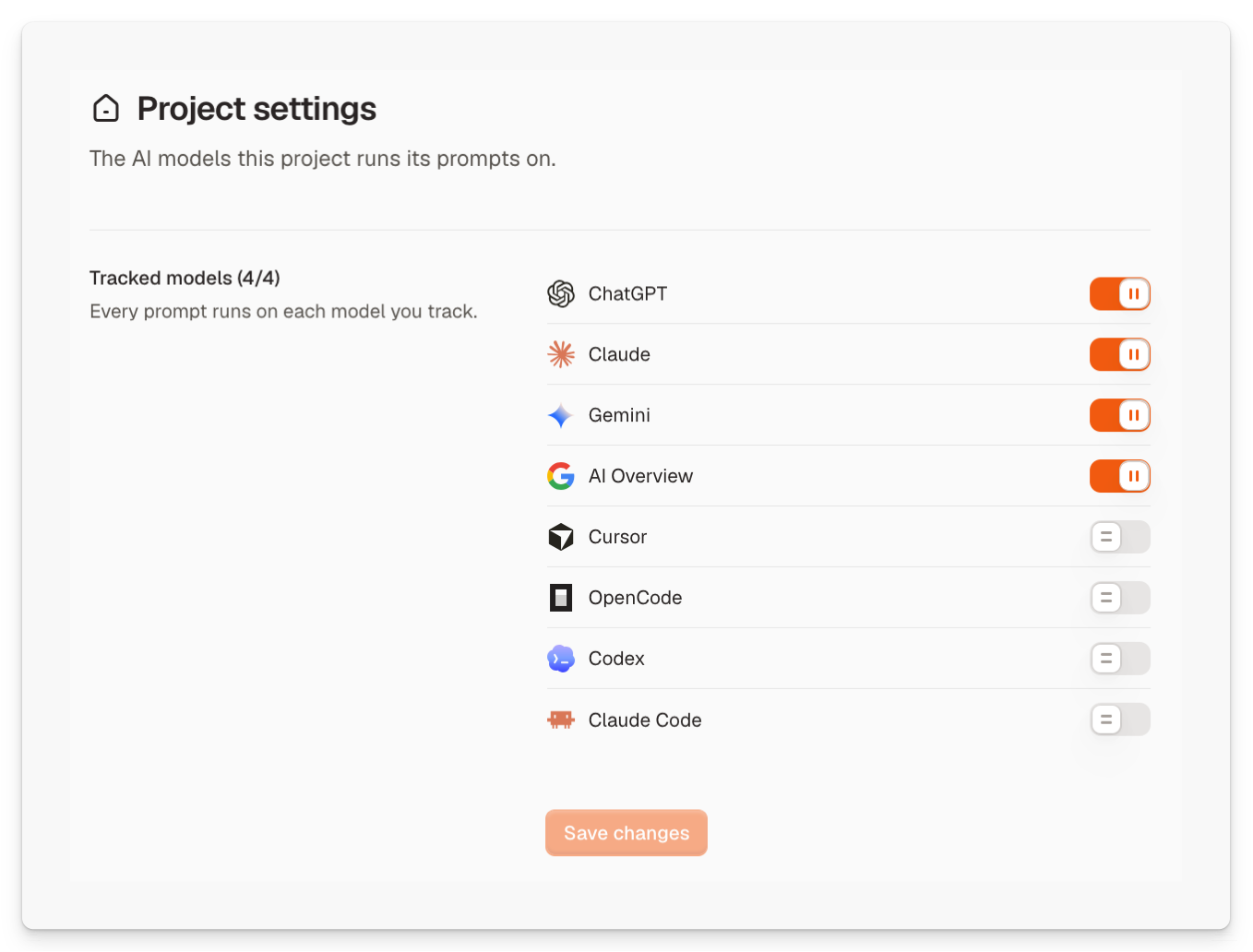
We can ask eight assistants: ChatGPT, Claude, Gemini, Google AI Overview, Cursor, OpenCode, Codex and Claude Code.
Your plan tracks four per project. New plans start on ChatGPT, Claude, Gemini and AI Overview. To swap one:
- Open Settings and click Models.
- Switch to the models you want to track.
- Click Save changes. We run today's prompts on the new model right away.
How often prompts run
New prompts run as soon as you add them. After that, they continue to run daily. If you hit your plan's prompt limit, they automatically pause until the next billing cycle.
What we read from each answer
Click a prompt to open its details:
- Visibility Score Rank ranks you and your competitors by the share of answers that name each brand. The Visibility Score chart shows that share day by day.
- Top Recommendations lists the brands the answers recommend and what for. Click one to read why.
- Sources lists the pages the assistants cited. Search queries shows what they searched the web for.
- Run history lists every answer by day and model. Click one to read the full answer, the brands it names and why, its searches and its sources.
Did this answer your question?