Copy and paste
Copy each article from ByDefault and paste it into your blog's own editor. Works with any blog.
 JoshUpdated 1 min read
How it works
You publish in your blog's own editor, like WordPress, Webflow, Framer or Notion. ByDefault puts the article on your clipboard in a form your editor understands, then checks your blog until it's live.
Copy an article
-
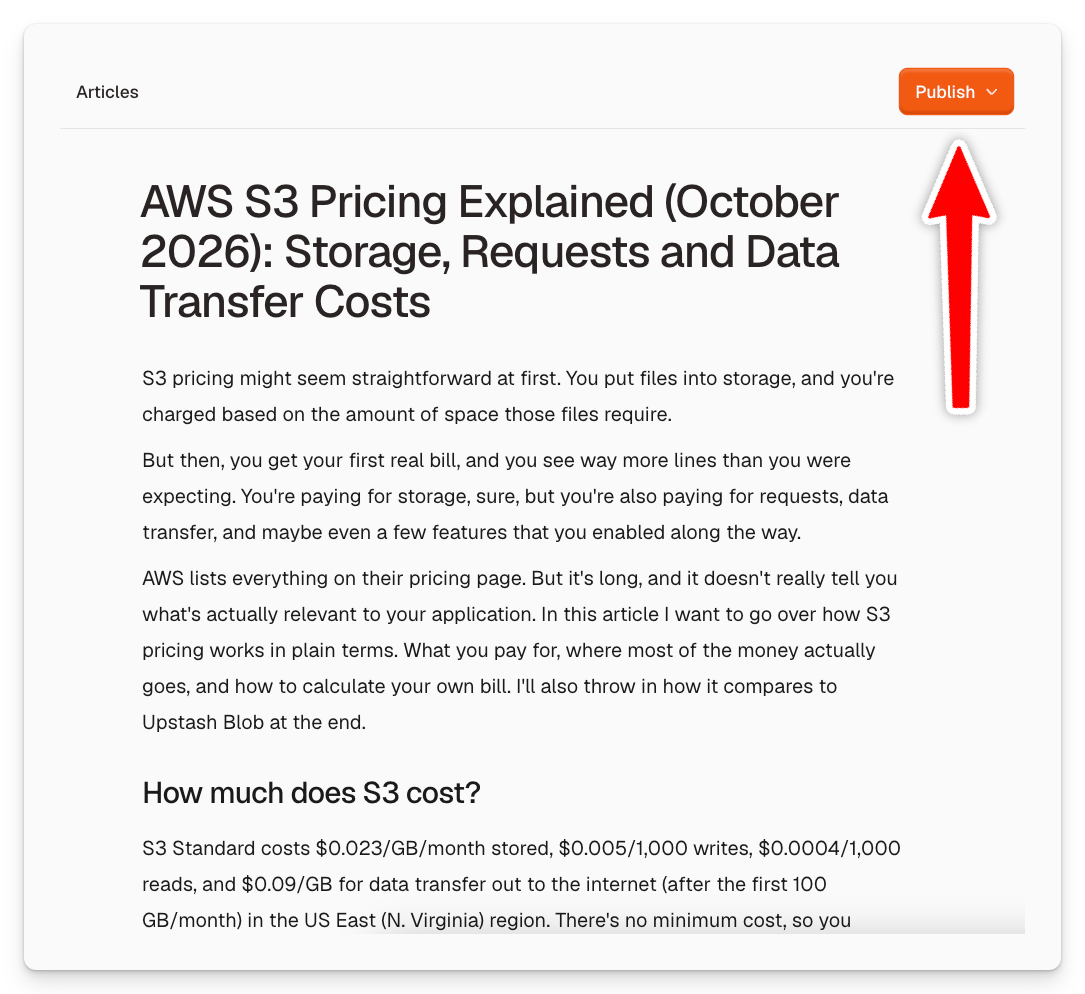
Click Publish in the top right of the article. Set the Slug if you want to change the end of the article's URL on your blog.
-
Click Copy article. Rich editors like WordPress or Notion get the headings, lists, links and images, and markdown editors get markdown.
-
Paste it into your blog. Start a new post and paste the body, then add the title and publish it at the same slug.
The article shows up as Copied in your dashboard until ByDefault finds it on your blog, then it turns Published.
Troubleshooting
My copied article still says Copied
Check that the live post's address ends in the article's slug, then open Articles again.
The button says Add a title to publish
The article has no title yet. Click the button to jump to the title field, type one, then copy again.
My editor pasted plain text
Some editors only take plain text from the clipboard. Paste into the editor's markdown mode, if it has one, and the formatting will work.
Did this answer your question?