Write articles AI cites
Ideas, the content agent, drafts, charts and fact checks.
 JoshUpdated 3 min read
Start an article
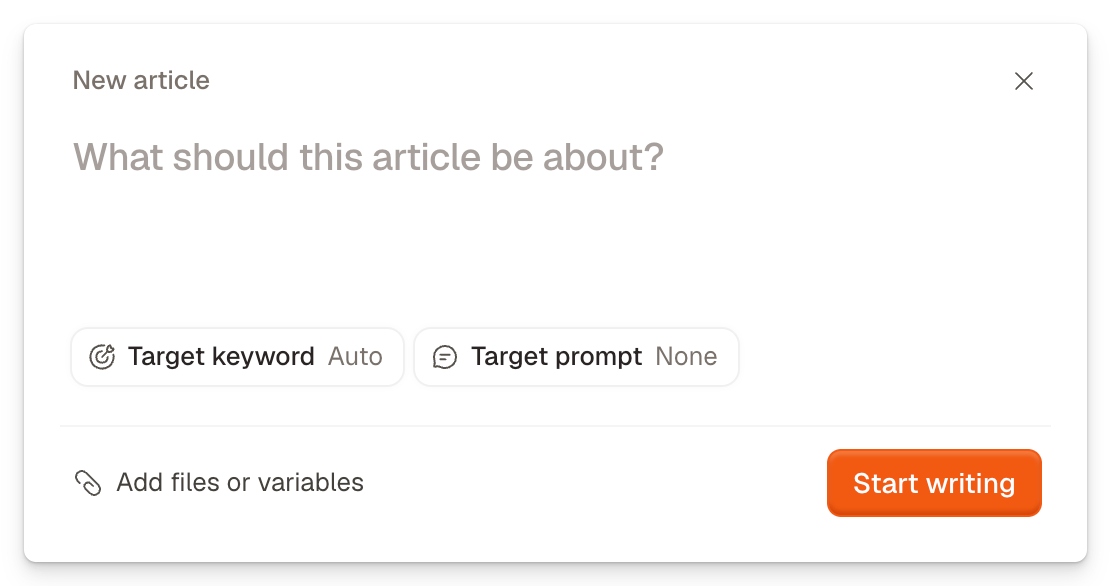
- Open Articles and click New article.
- Describe the topic in a few words.
- Pick a Target keyword and a Target prompt, or leave them. With Auto, ByDefault picks a keyword from the finished article.
- Click Add files to give the agent your own material: PDFs, Word documents, notes, CSV files or images. Up to 10 files, 10 MB each.
- Click Start writing.
The agent researches, writes and checks the article on its own. This can take up to 30 minutes, and you don't need to stay on the page. The Status column shows its step: Researching, Writing or Final checks. When it finishes, the article is a Draft.
Creating content through MCP
Prefer working in your own AI client? Connect Claude, ChatGPT, Cursor or Codex through MCP to write and edit articles directly from your own chat.
Your client gets the same full toolset as the built-in content agent:
- Search the web, browse live pages, check search volume and AI search queries, and run code or benchmarks in the article's sandbox.
- Run a natural-writing pass so drafts read like a person wrote them, not an LLM.
- Generate and insert images, charts, screenshots, Excalidraw diagrams and tweets, and run Google AI Overview checks as you write.
Edits stream live into the ByDefault editor, or you can use the same tools on markdown files in your own repo. See ByDefault MCP to connect your client.
Images, charts and drawings
The agent adds images, charts and Excalidraw drawings where a picture explains faster than text. Charts come from sourced data.
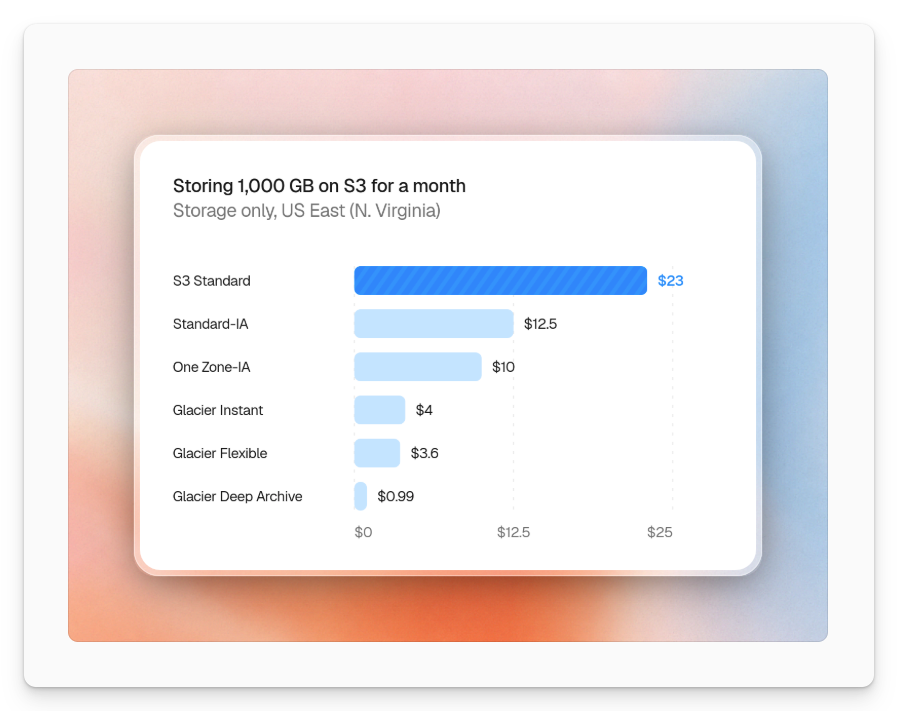
To add one yourself, type / in the article and pick Image or Excalidraw, or paste an image. Hover an image for its tools: open the image editor, add alt text, download or delete.
In the image editor, save a style under Presets. Its menu has Set as organization default. Images the agent adds use your default style.
Check the draft
The GEO Checks tab next to Assistant follows the draft as it changes. It starts once the article has a title and a few paragraphs.
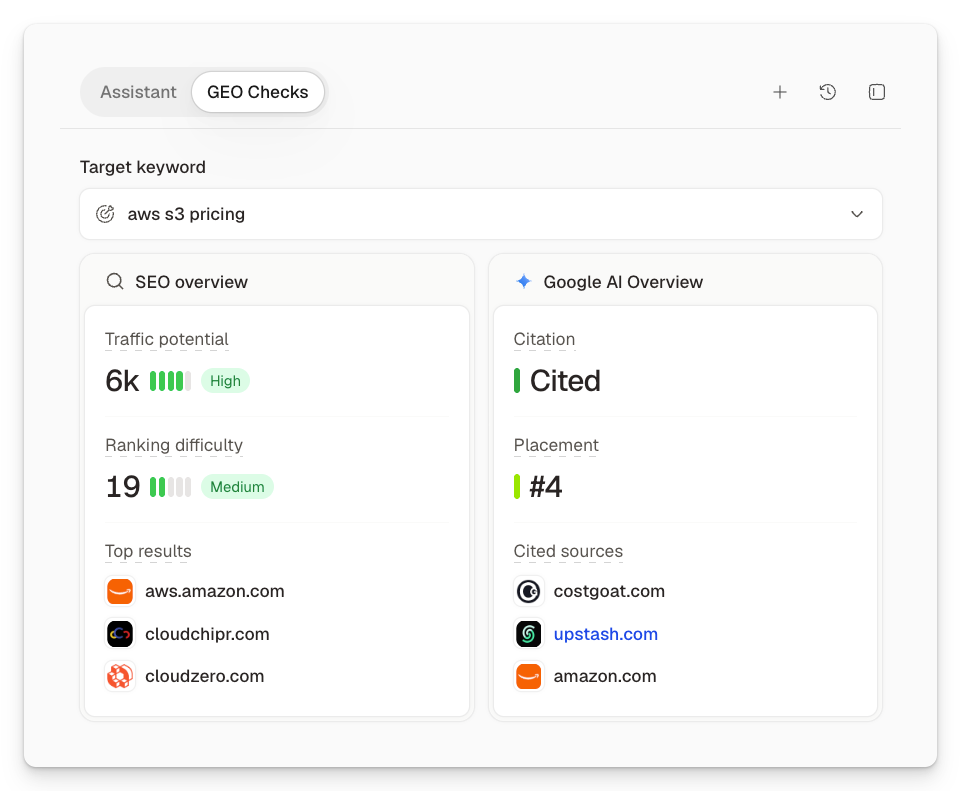
- Target keyword: the search the article should rank for. Pick one of the searches from your prompt runs, or type your own.
- SEO overview: traffic potential, ranking difficulty and the top results for that keyword.
- Google AI Overview: a preview of Google's AI Overview with your article among the results. It shows whether the overview cites the article, at which point, and the sites it cites most. Click Ask a follow-up to ask why.
- Who appears in top results: the brands the top-ranking pages mention.
- Prompts answered: your tracked prompts that would cite this article.
Did this answer your question?